ChatGPT Desktop: Practical Tips for Capture and Proposal Teams
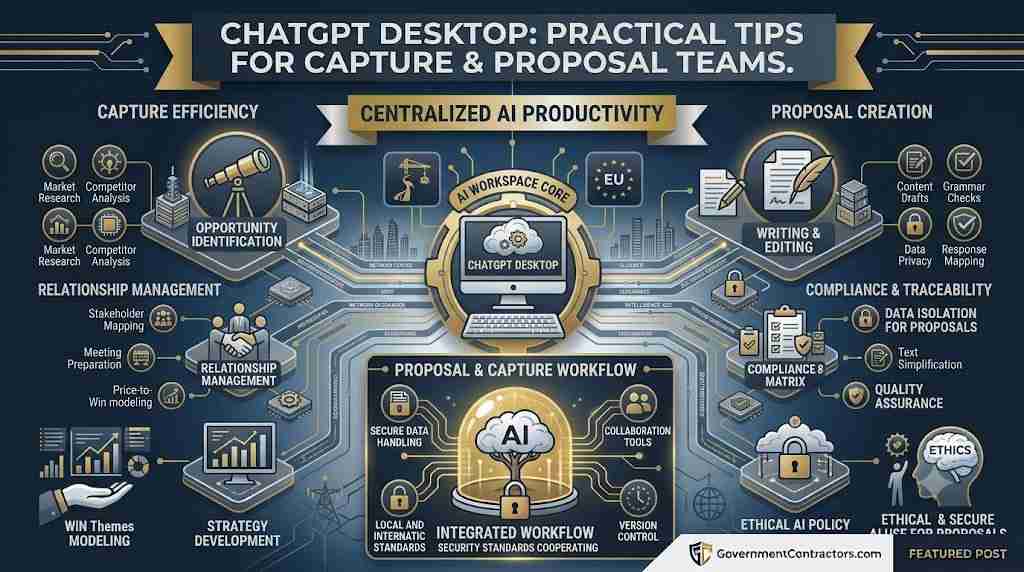
Tips and Tricks for the New ChatGPT Desktop Application
The new ChatGPT desktop application combines three major OpenAI experiences in one interface:
- Chat for questions, writing, brainstorming, web research, and everyday assistance.
- Work for completing larger assignments such as research reports, documents, presentations, spreadsheets, images, and websites.
- Codex for software development using local repositories, files, terminals, and developer tools.
The new application is available for macOS and Windows. Some capabilities are still rolling out by account, subscription, workspace policy, and operating system. The previous macOS application has been renamed ChatGPT Classic and can remain installed, although some new agentic capabilities are exclusive to the new application. OpenAI migration guide
Tips for getting more from the desktop application
- Choose the correct mode before beginning. Use Chat for quick questions and iterative conversations. Use Work when the assignment requires multiple steps, extensive research, or a finished artifact. Use Codex when the primary task involves software, repositories, terminals, or local development files.
- Use Projects for continuing work. Create a Project for a course, book, customer, proposal, or research program. Store related conversations and files together so new Chat and Work threads begin with the appropriate context.
- Pin important conversations. Chat and Work conversations now appear together under unified Recents. Pin active projects and use sorting and filtering to avoid repeatedly searching for important threads.
- Use the desktop shortcut instead of switching windows. Press Option + Space on macOS or Alt + Space on Windows to open the companion window. This is useful for asking a quick question, uploading a file, or starting a new conversation without interrupting the application you are using.
- Customize the keyboard shortcut. If the default shortcut conflicts with another program, change it in the application settings.
- Start in one place and continue somewhere else. Cloud-based Work conversations synchronize across desktop, web, and mobile. Local conversations remain on the computer on which they were created. Check whether a thread is cloud-based or local before assuming it will be available on another device. OpenAI release notes
- Provide the desired outcome, not only the topic. Instead of entering “AI governance,” use: “Create a four-page executive briefing on AI governance, include a risk matrix, cite current authoritative sources, and deliver it as a Word document.”
- Give Work permission to finish the assignment. Include the audience, objective, format, length, tone, source requirements, and acceptance criteria in the opening prompt. This reduces repeated clarification.
- Use separate threads for separate deliverables. Keep research, lesson development, presentation creation, and image generation in distinct threads unless they are components of one larger assignment.
- Upload the authoritative source file. When revising a document, attach the latest approved version and explicitly identify it as the source of truth. Do not rely on an earlier conversation containing an outdated version.
- Review plans before long assignments begin. For a complex Work request, ask ChatGPT to identify its assumptions, intended deliverables, and evaluation criteria before producing the final artifact.
- Verify external actions and consequential outputs. Review emails, legal material, financial analysis, policy conclusions, code changes, and files before they are submitted, published, or placed into production.
- Use Voice for dialogue and Dictation for prompts. Voice supports a live back-and-forth conversation. Dictation is better when you want to speak a prompt, review the transcription, edit it, and then submit it. Voice transcripts may not be verbatim. OpenAI Voice FAQ
- Check application permissions periodically. Screen capture, microphone, accessibility, file, camera, and application-integration permissions should be limited to what you actually use.
Macintosh and Windows comparison
| Capability | macOS version | Windows version | Practical guidance |
|---|---|---|---|
| New unified application | Includes Chat, Work, and Codex | Includes Chat, Work, and Codex | Use the top-left switcher to move between ChatGPT and Codex; inside ChatGPT, choose Chat or Work. |
| System requirements | macOS 14; Apple Silicon M1 or newer or supported Intel processor | Windows 10, x64 or ARM64, version 17763.0 or later | Older operating systems may require the web experience or an OS upgrade. |
| Quick-access shortcut | Option + Space | Alt + Space | The shortcut can be customized if it conflicts with another application. |
| Companion window | Stays in front of other windows and can reopen the most recent companion window | Remembers its position and provides quick access to chats and uploads | Use it for short questions; move complicated assignments into the main window. |
| Chat, Work, and Codex navigation | Supported | Supported | The interface and primary workflow are intended to be consistent across both systems. |
| Unified Recents | Supported | Supported | Chat and Work conversations can be sorted, filtered, and pinned. |
| Projects | Supported | Supported | Start Chat or Work from inside a Project to inherit its context. |
| Cross-device Work synchronization | Cloud Work threads synchronize | Cloud Work threads synchronize | Local conversations remain on the originating computer. |
| Agent mode | Supported | Supported | Availability can depend on plan, account rollout, and workspace policy. |
| Screenshot capture | Native macOS capture workflows can be used | Integrated with Windows Snipping Tool | On Windows, select a region, application window, or complete screen and attach it directly. |
| Webcam photographs | Camera access depends on the available workflow and permissions | Windows app includes direct webcam photo attachment | Useful for analyzing physical objects, whiteboards, equipment, and printed material. |
| Work with Apps | Stronger macOS-specific integration with supported editors, IDEs, terminals, and Notes | The same macOS “Work with Apps” integration is not documented as available | macOS users can intentionally pass active application context to ChatGPT. Always check the context banner before sending. |
| Direct code edits in IDEs | Supported for compatible applications; changes appear as a reviewable diff | Use Codex and its Windows development workflows rather than assuming macOS-style IDE integration | Review diffs before applying and keep source control enabled. |
| Record mode | Available on macOS for eligible plans and workspaces | Not currently available on Windows | Record mode can transcribe meetings, brainstorms, and voice notes and create summaries and follow-up actions. |
| Record & Replay in Codex | Available on macOS for eligible users | Not currently documented for Windows | Useful for demonstrating a repeatable workflow and converting it into a reusable skill. |
| Text scaling | Standard macOS display and application controls | Supports Ctrl + and Ctrl – | Increase text size when presenting, teaching, or using high-resolution displays. |
| Chat-history search | Available through the unified desktop interface | Ctrl + K is documented for rapid history search | Use descriptive thread names to make later retrieval easier. |
| Enterprise deployment | Controlled through workspace and device-management policies | Microsoft Store access can be controlled or deployed through tools such as Microsoft Intune | Employees may not see the same features if administrators disable them. |
| Application permissions | May require Accessibility permission and extensions for Work with Apps | May require camera, microphone, screen-capture, and file permissions | Grant only necessary permissions and review them regularly. |
macOS-specific tips
- Use Work with Apps when you want ChatGPT to reference an open document, selected text, terminal output, or code. A banner identifies the applications and content being included.
- Select only the relevant text before invoking ChatGPT. A focused selection produces better results and reduces the amount of unnecessary content added to the conversation.
- Compatible applications include Apple Notes, TextEdit, selected third-party text editors, Xcode, VS Code variants, JetBrains IDEs, Terminal, iTerm, Warp, and Prompt. OpenAI Work with Apps guide
- Review every proposed code change as a diff before applying it. Use Command + Z or source control when a change must be reversed.
- Use Record mode for meetings and brainstorming sessions, but obtain permission from participants and verify important names, decisions, and commitments in the resulting transcript. Record mode is currently limited to eligible plans on macOS. OpenAI Record guide
Windows-specific tips
- Use the Snipping Tool integration to capture an error message, application window, chart, or selected screen region and insert it directly into a conversation.
- Use Ctrl + K to search conversation history quickly.
- Use Ctrl + and Ctrl – to adjust text scaling.
- If Alt + Space conflicts with Windows utilities or another application, assign a different companion-window shortcut in Settings.
- Enterprise and education users may need their administrator to approve the Microsoft Store application or deploy it through Microsoft Intune or another device-management system. OpenAI Windows guide
Best-practice prompt
Using the files and context in this Project, create a finished executive briefing on [topic]. Use Work mode because the assignment requires research, analysis, and a formatted deliverable. Identify your assumptions, use current authoritative sources, preserve the organization’s terminology, and verify the final document for factual and formatting errors before delivery.